



ChatGPT voice mode now built into the main interface, what you need to know
OpenAI has brought a new update to ChatGPT. Now, users can easily access voice mode with AI models from the main interface without the need to visit it separately. Here’s everything you need to know.
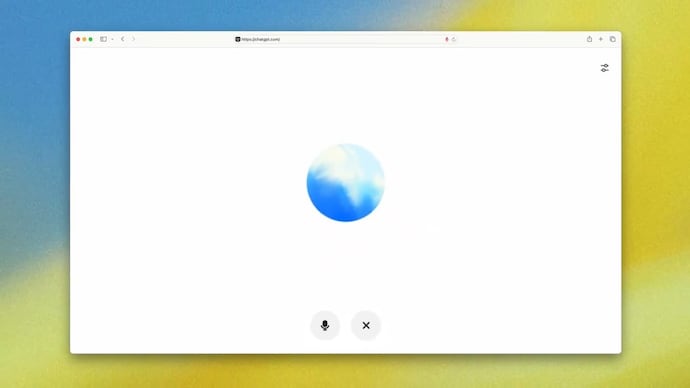

Voice chat with AI is quite useful. You can get answers to your questions without typing long sentences or prompts. However, if you wanted to use ChatGPT Voice, things were a little trickier. Chatbots work in a different interface from your normal chat, with voice-only mode. Now, OpenAI has introduced a major update to ChatGPT by integrating voice mode directly into the main chat interface.
OpenAI confirmed that the feature is being rolled out to all users. Users will need to update their ChatGPT app to access integrated voice capabilities. It is available to all smartphone and web users.
What changed in ChatGPT’s voice mode with the new update? How does Unified Voice Interface improve the user experience?
Now, users can talk to ChatGPT via voice right in the main chat, without having to switch to a separate screen. Previously, ChatGPT’s voice mode required users to leave the main chat and enter a dedicated voice interface, which included limited options such as listening to responses and managing mute or video settings.
The update allows conversations to flow more naturally, allowing users to speak, see reactions, and interact with visuals all in the same window.

What features are now available during voice chat?
The integrated voice mode supports everything we have become accustomed to from ChatGPT. With this update, you will be able to see images and maps as reactions are generated. This is expected to streamline workflows and make interactions feel more intuitive.
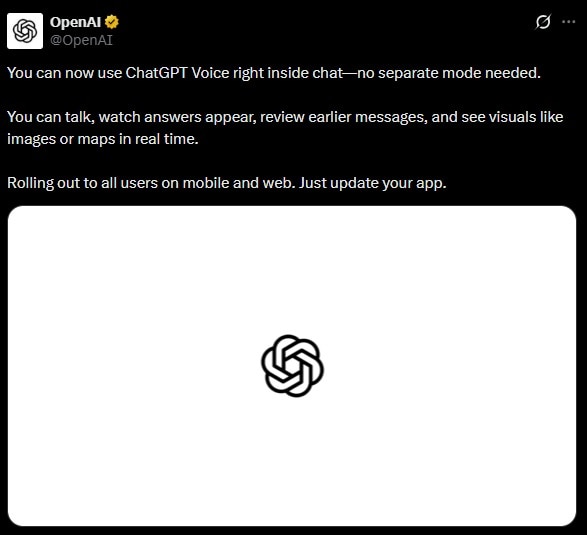
“You can talk, see replies coming in, review earlier messages, and view visuals like pictures or maps in real time,” OpenAI wrote on X.
For those who prefer the older interface, OpenAI has included an option to revert to the separate voice mode. Users can do this by going to Settings, selecting Voice Mode, and turning on “Separate Mode.” It restores the classic interface and layout for those who want to keep their voice and text interactions separate.